Register a New User
You will need a company code and a valid email address to register yourself as a user for the Metsec Metwall or Load Bearing Revit apps. Once you are registered as a user, you can request a licence.
1. First, contact your Metsec representative to request a Company Code for your organisation.
2. Once you have a company code, navigate to the 'Register User' page.
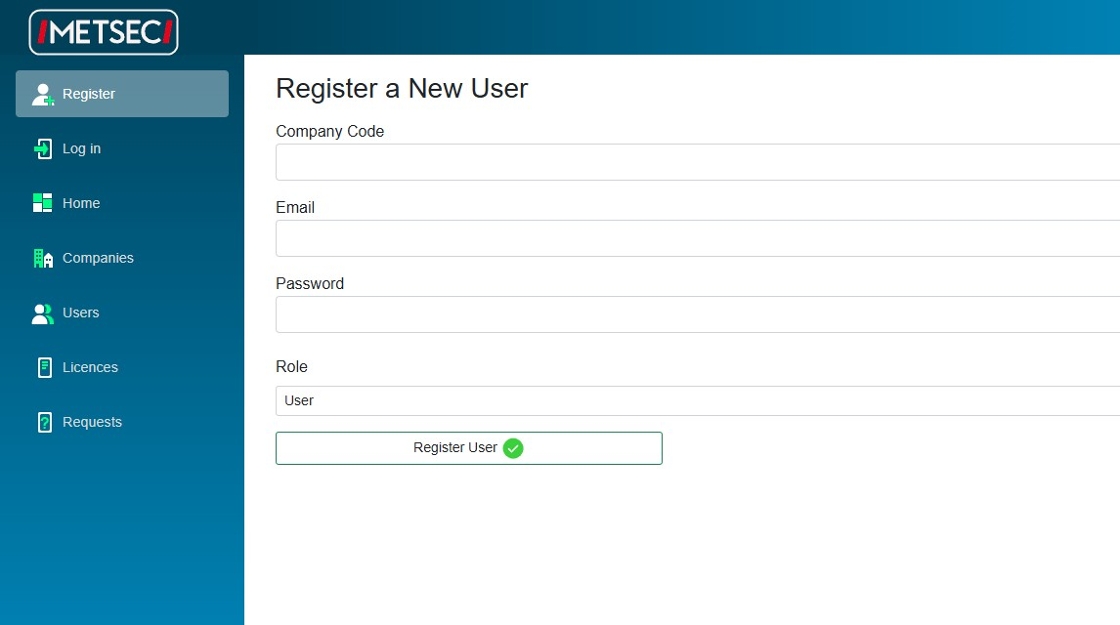
3. Enter the Company Code provided by Metsec admin.
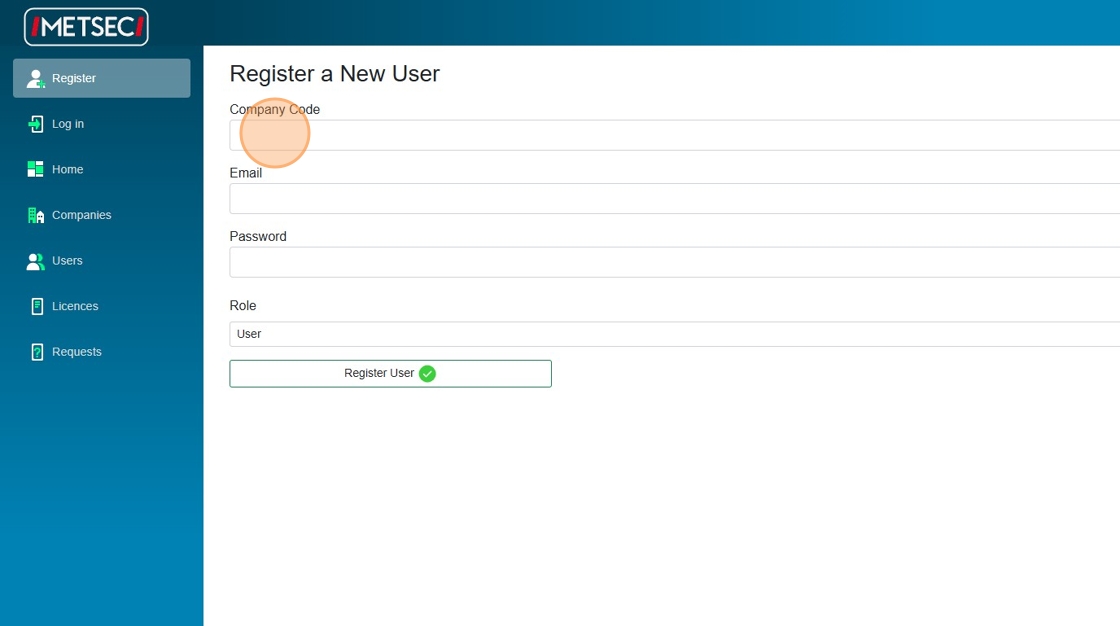
4. Enter your email.
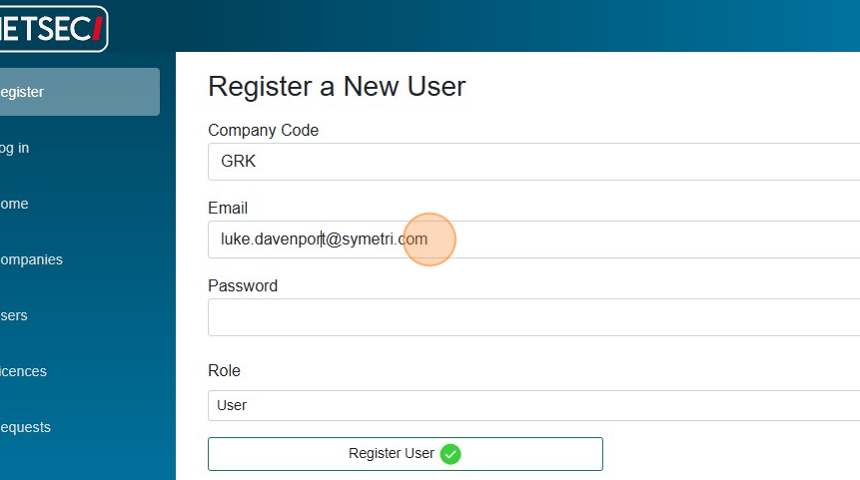
5. Enter a strong password.
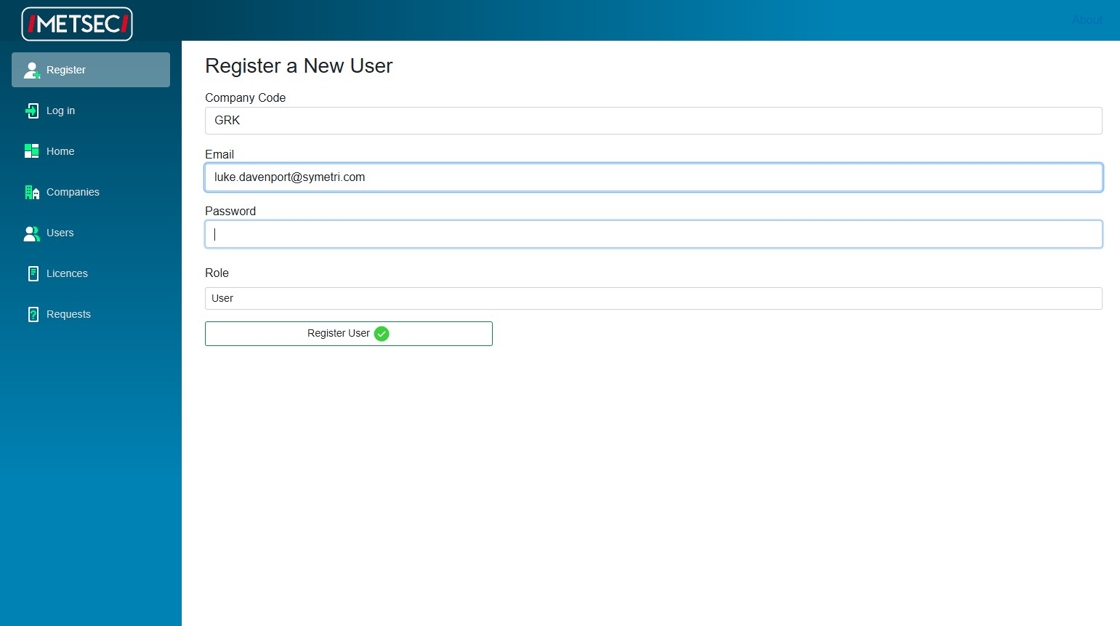
6. Click "Register User"
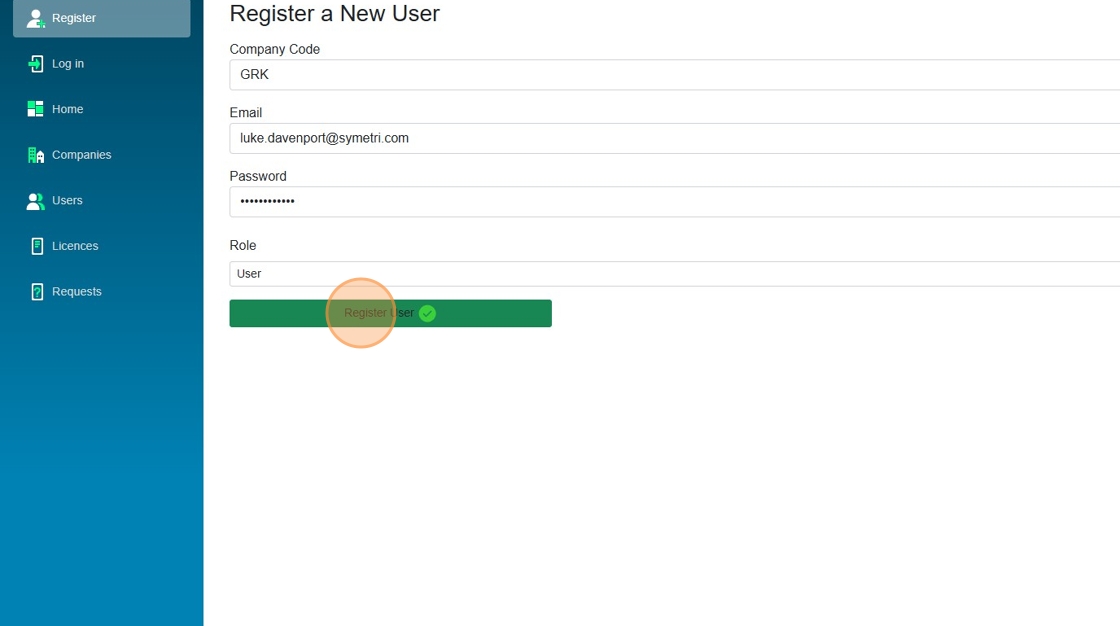
7. Check your email inbox (and junk folder) for the Metsec Licencing email verification.
If you did not receive an email, or you do not click the click in less than 60 minutes, or you accidentally deleted the email, you will need to request another verification email from your Metsec representative.
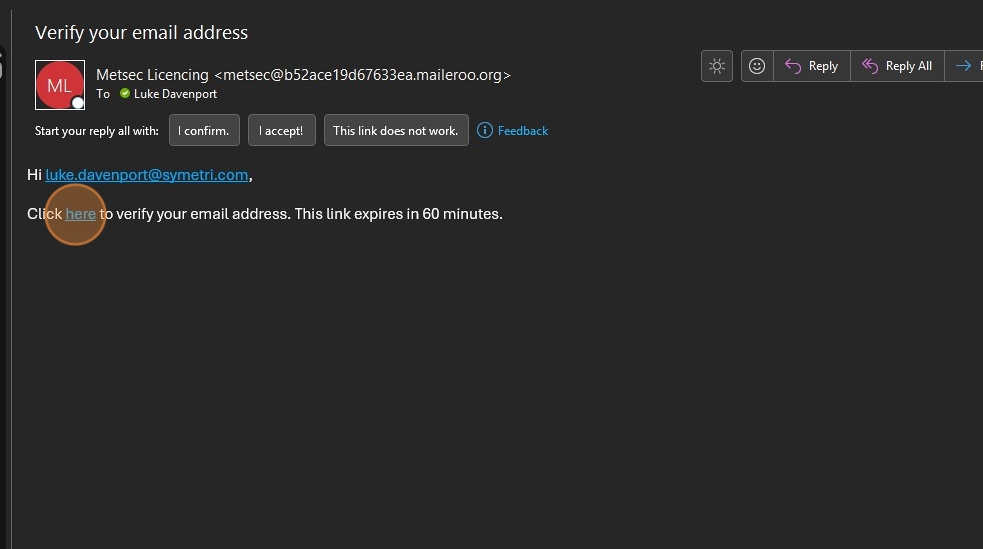
8. When you click the 'verify' link in your email, you receive this message to confirm.
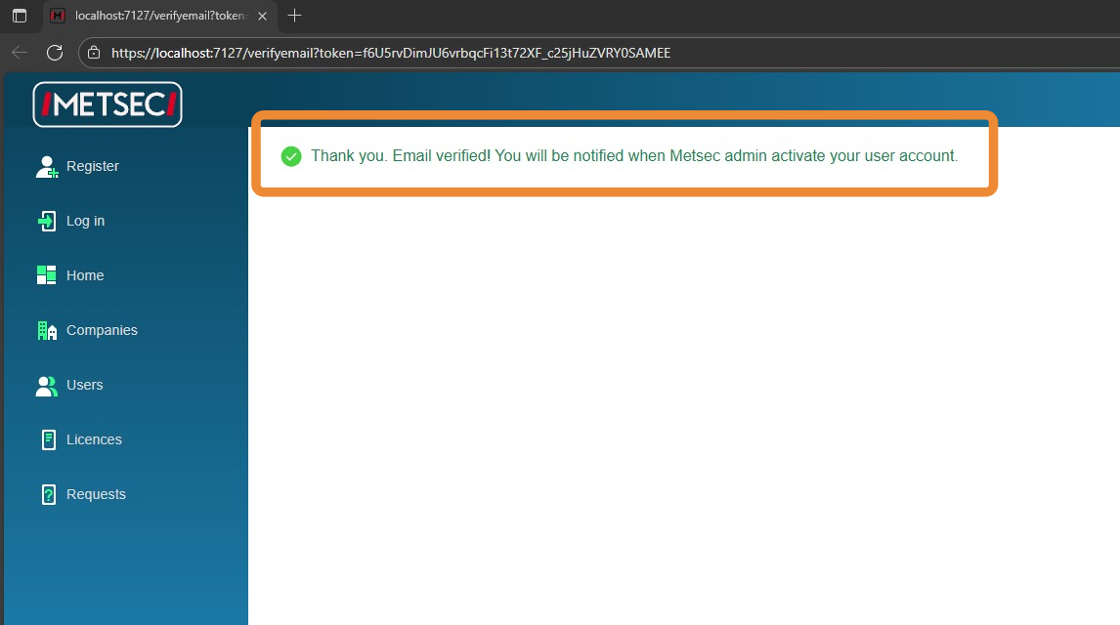
9. You now need to wait for Metsec admin to activate your user in the system. You'll receive an email when this happens.
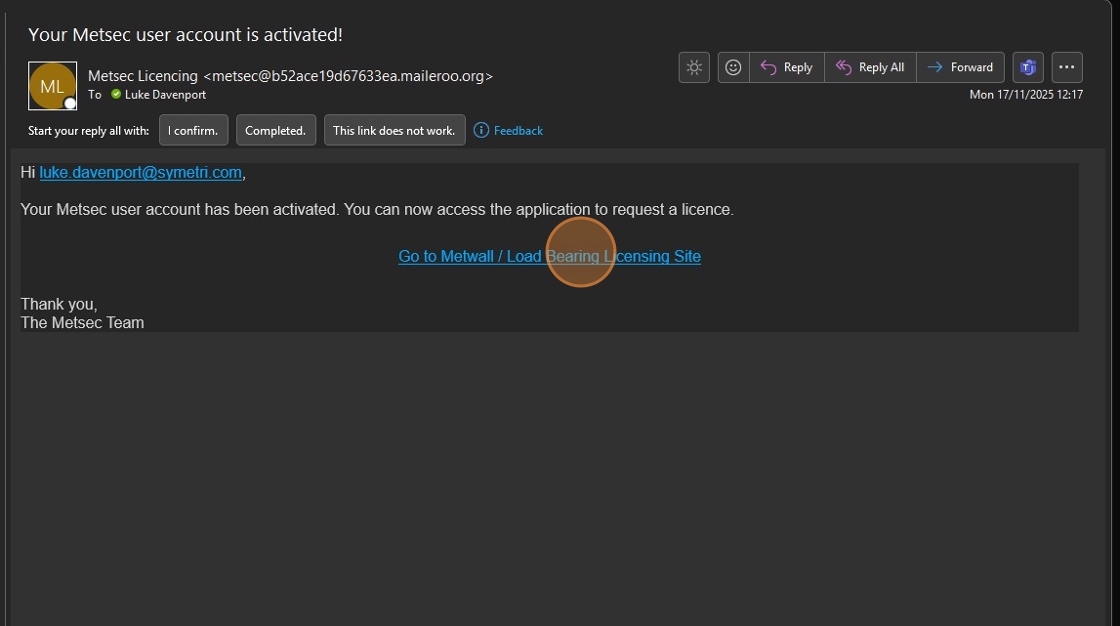
When you receive it, you now have access to the licencing website - what's next?
You need to request a licence for the Revit addin.
Click "Go to Metwall / Load Bearing Licensing Site" in the email, and find the tutorial instructions for 'Request a Licence'.
Reset Your Password
Here's the steps to follow if you lose your Metwall / Load Bearing user password.
1. Navigate to the licencing website and go to the Login page.
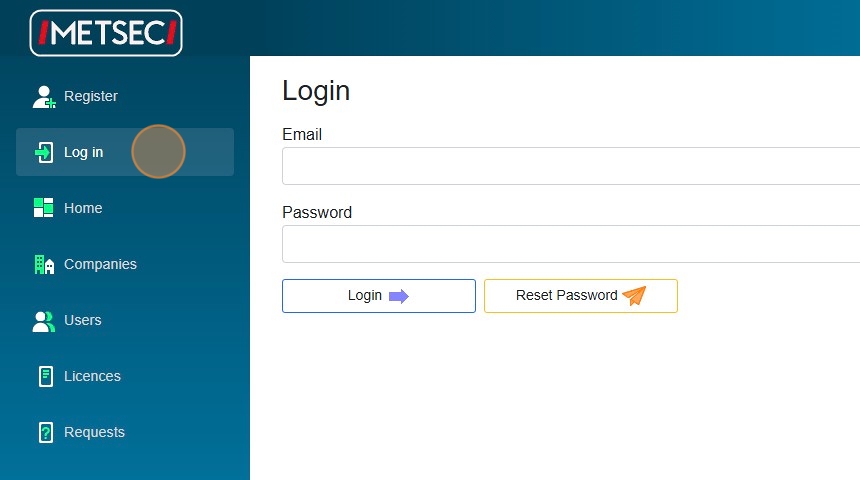
2. Enter the email you registered with the system.
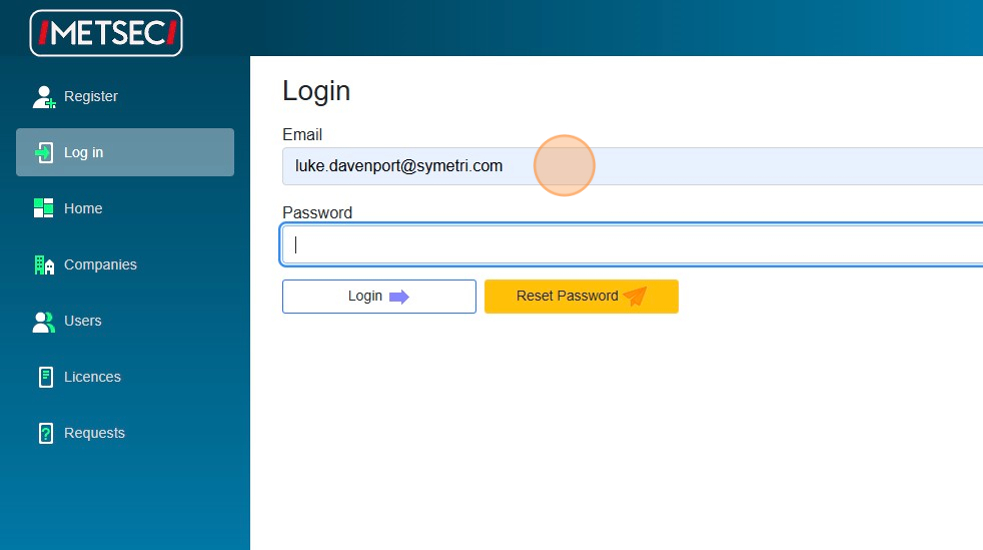
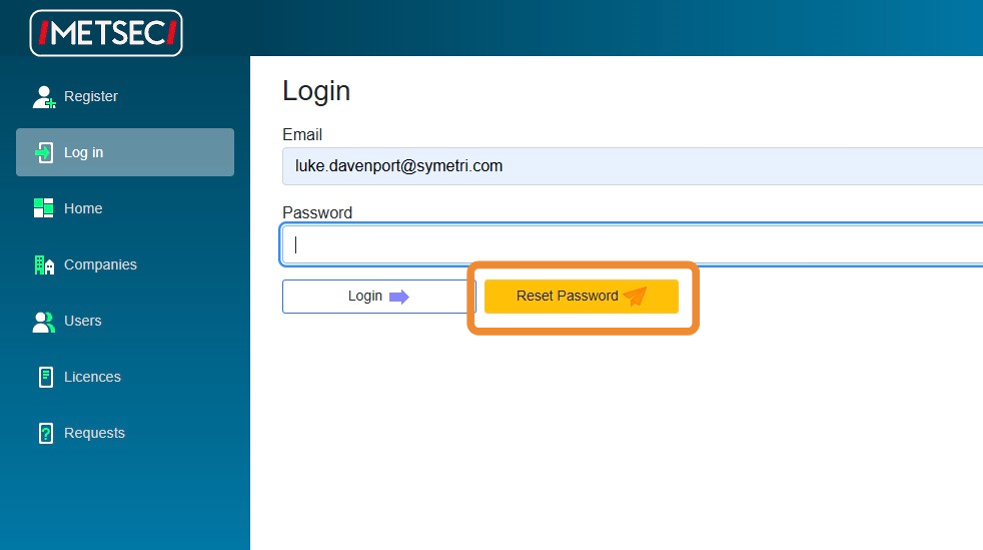
3. Click 'Reset Password'
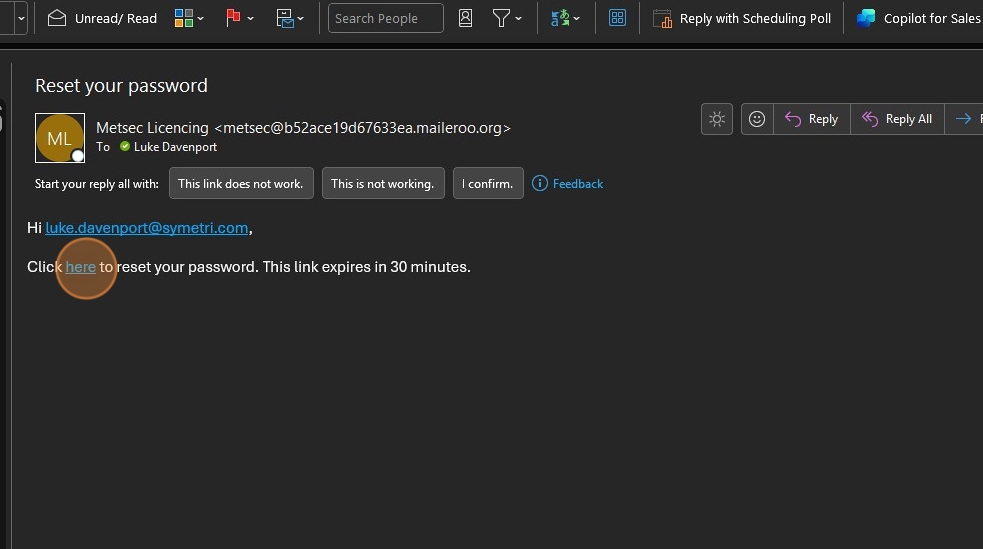
4. Make sure you check your junk inbox for the password reset email.
5. Enter your new password.
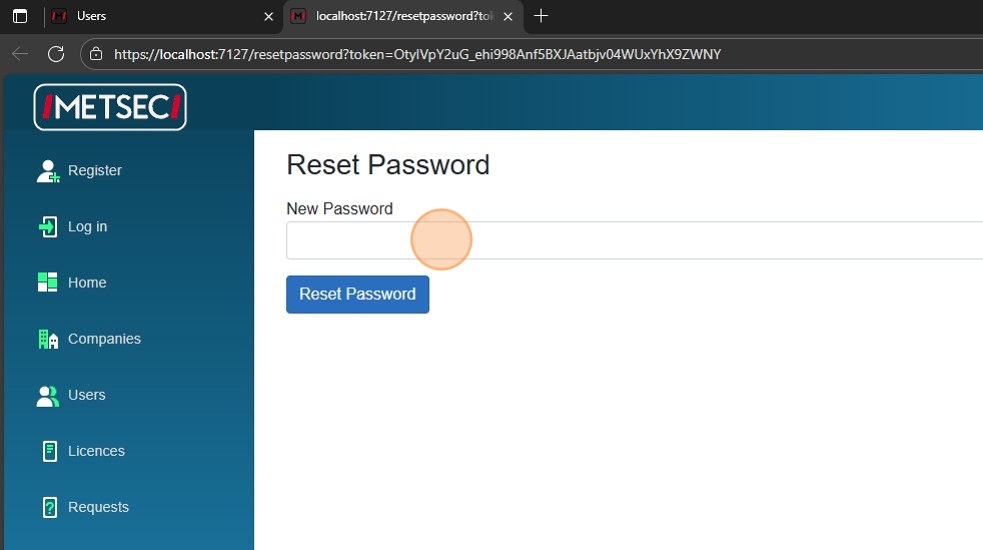
6. Click "Reset Password"
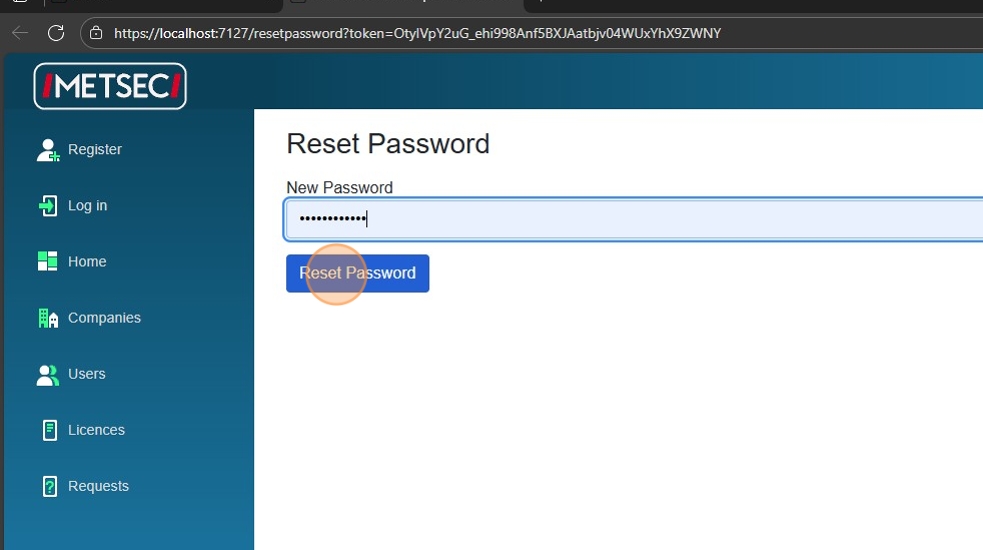
7. Click here
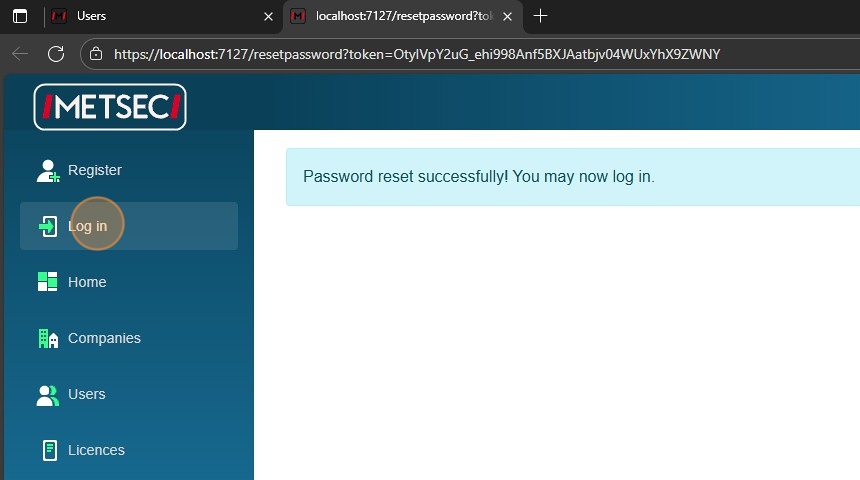
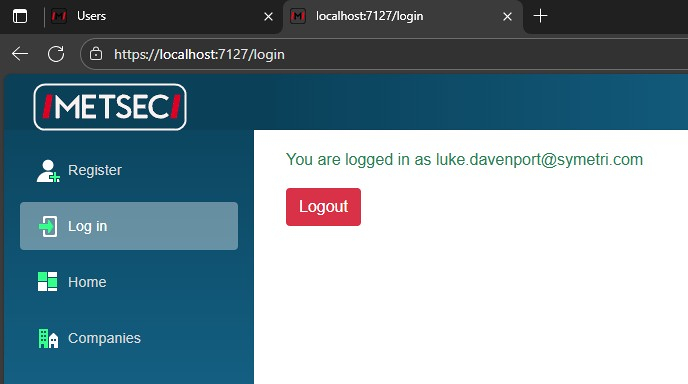
8. Try to log in with your new password.

9. Success. Contact your Metsec representative if you have any issues with this process.
Request a Licence
Once a user has been registered and activated by Metsec admin, you can request a licence for that user on the users page. The Users page also displays other information about all the users for your company.
1. Log in to the licencing website.

2. Click "Users"
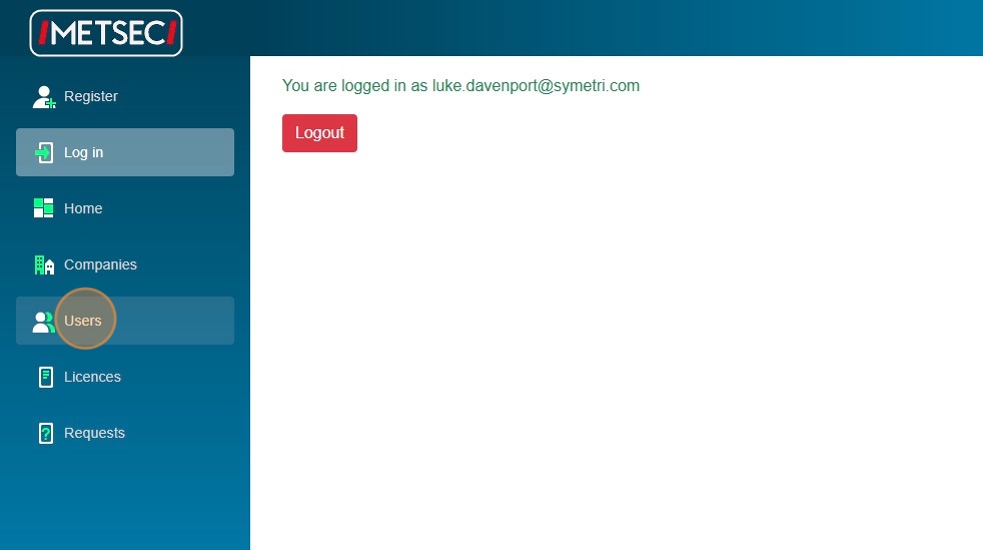
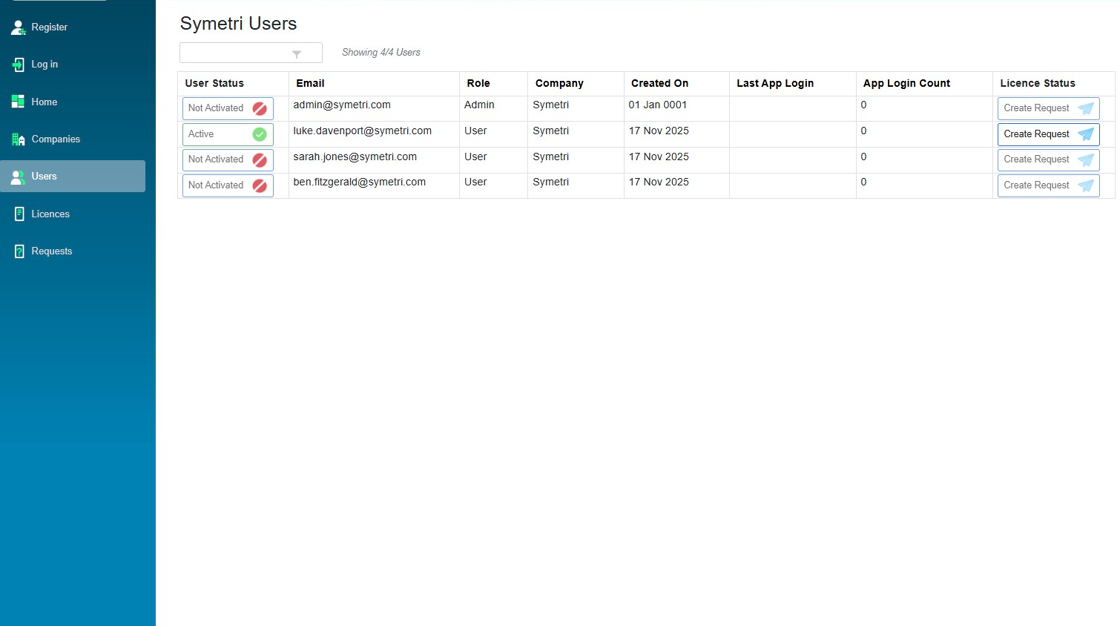
3. We see all the currently registered users for our company. We can see which users have been activated, when they last used the Metwall or Load Bearing Revit apps, how many times they have used the apps, and whether they have a licence or not.
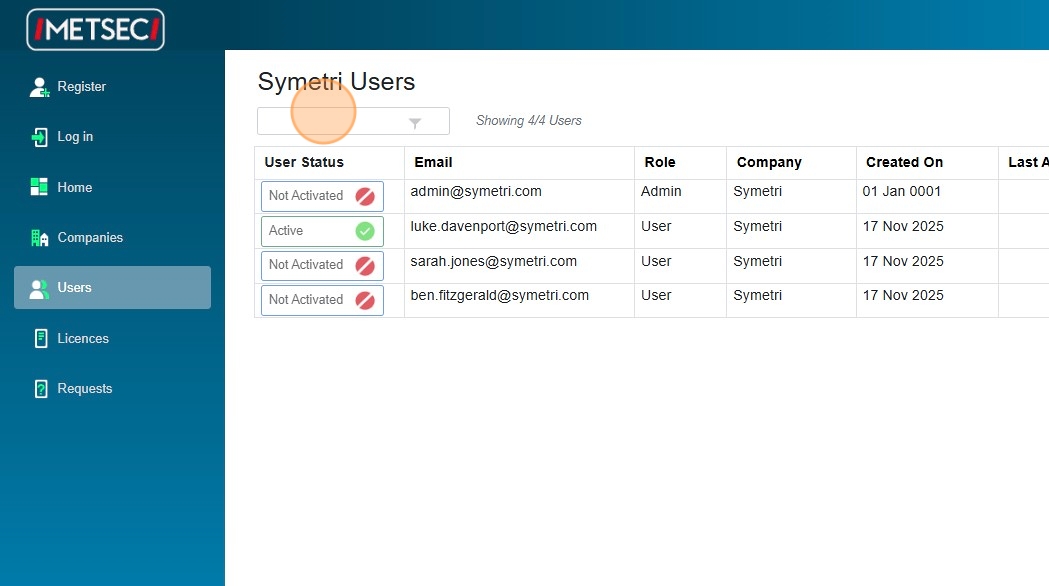
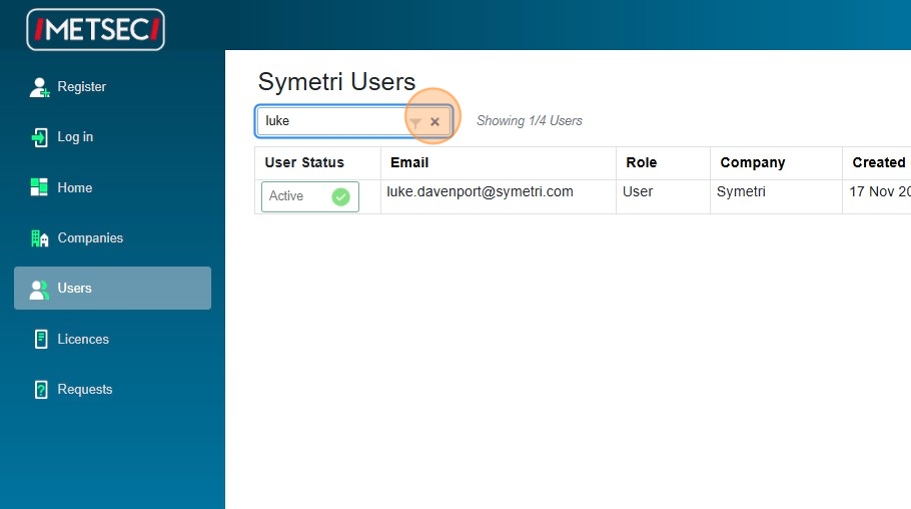
4. We can filter the users by typing here.
5.
6. For any activated users without a current licence, we can request a licence using the button on the right. If the user has not verified their email and been activated by Metsec admin, a licence cannot be requested.

7. If we click the 'Create Request' button, we can enter a name for the licence request if we wish, or we can leave this as the default.
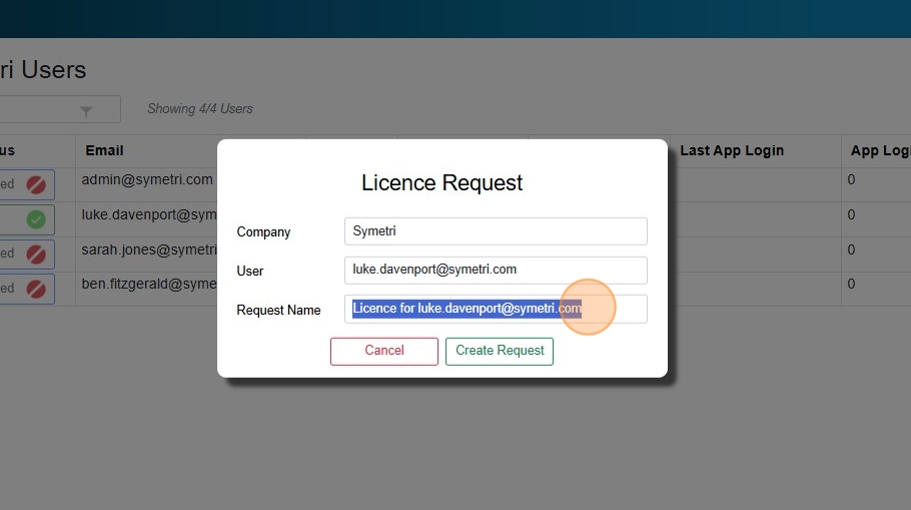
8. Click "Create Request"
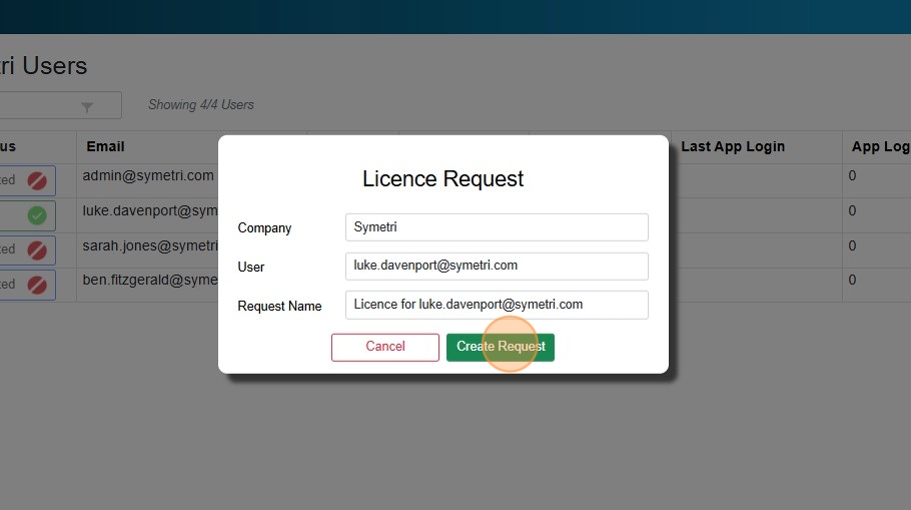
9. Now we can see the licence status is 'Pending', and the licence request is waiting for approval by Metsec admin. They have been emailed a notification.
To view the request, click "Requests"
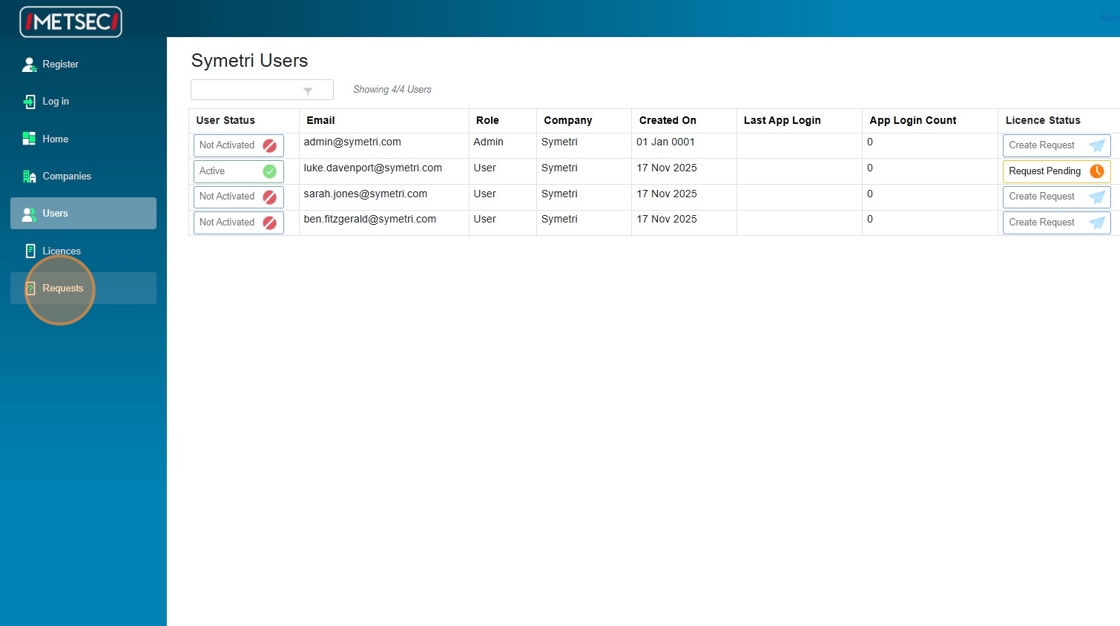
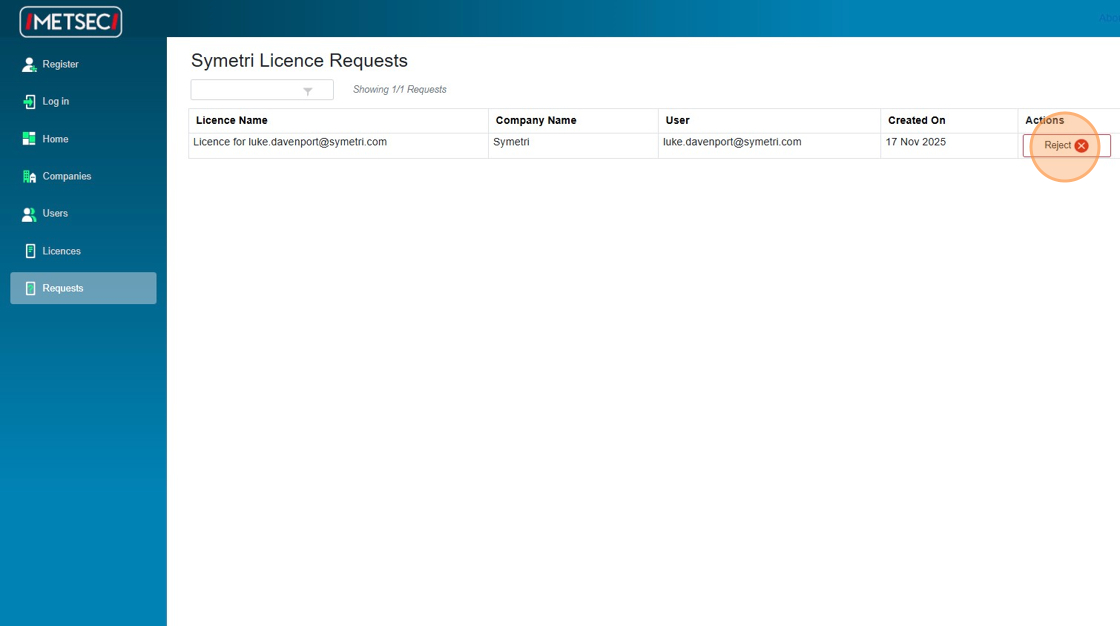
10. Here is the licence request waiting for approval.
Only Metsec admin can approve this request. You will be notified when this happens.
You can delete the request yourself if you wish using this button.
View your Licences
The Licences page allows you to view the current licences assigned for your company, revoke licences and transfer licences to other users in your organisation.
1. Navigate to the login page and log in with your email and password.
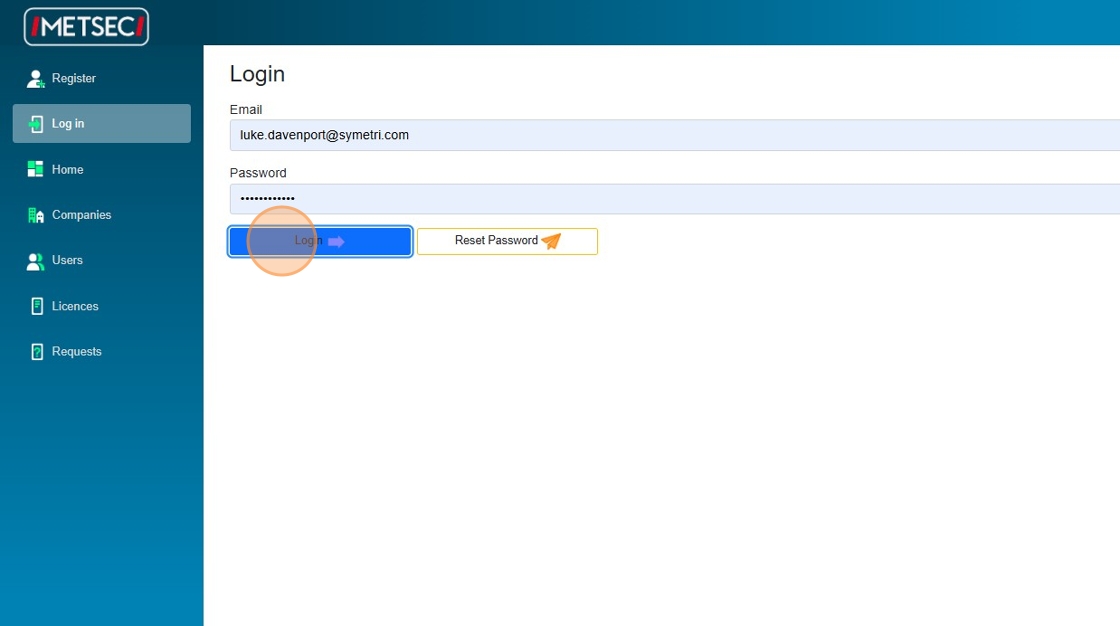
2. Click "Login"
3. Click "Licences"
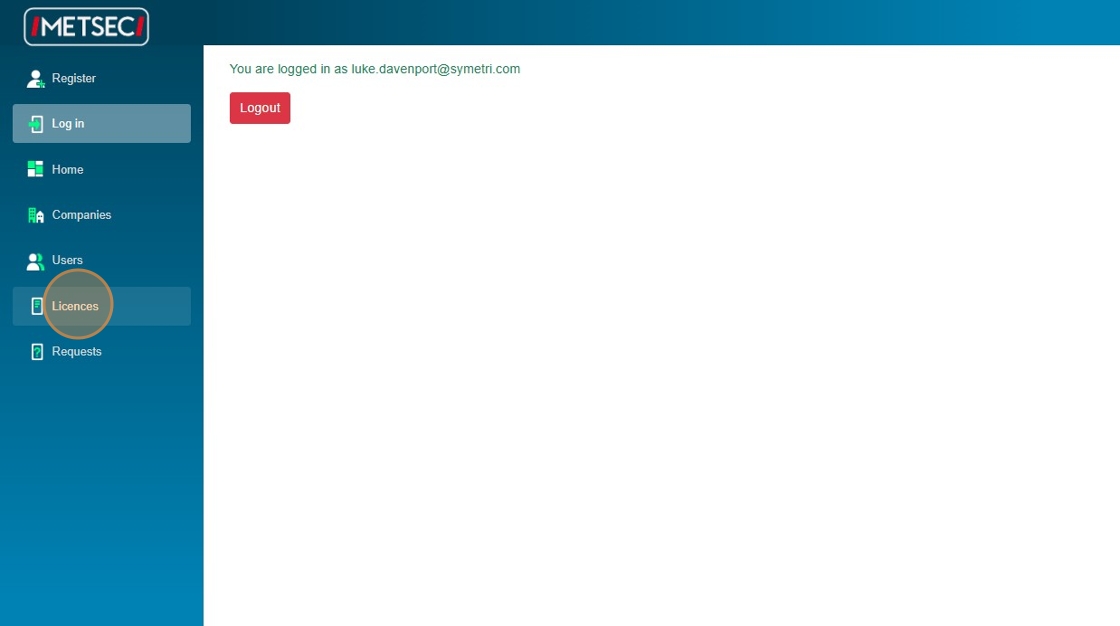
4. We see that our company has three active licences.
We can see the user email assigned to each licence, the last access date, the access count, and the version information (which version of Revit and the Metwall / Load Bearing applications was last used).
We can sort the table by any column, and we can filter the licences (by any column) by typing here.
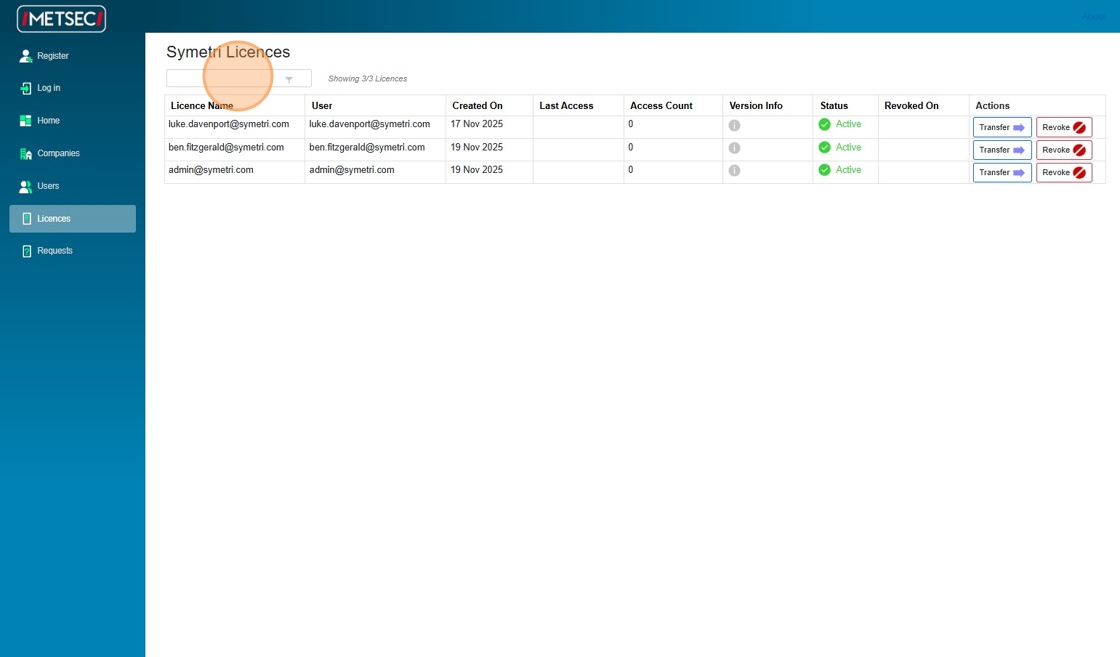
Tip: Tip! Hover over the 'i' icon to see the detailed version information (which Metwall / Load Bearing application version the user last used).
Revoke or Reactivate a Licence
The Licences page allows you to view the current licences assigned for your company, revoke licences and transfer licences to other users in your organisation. Revoking a licence will not delete it from the system, but it will prevent the user from using the Revit application(s) while it remains revoked. Revoked licences can be reactivated at any time if desired.
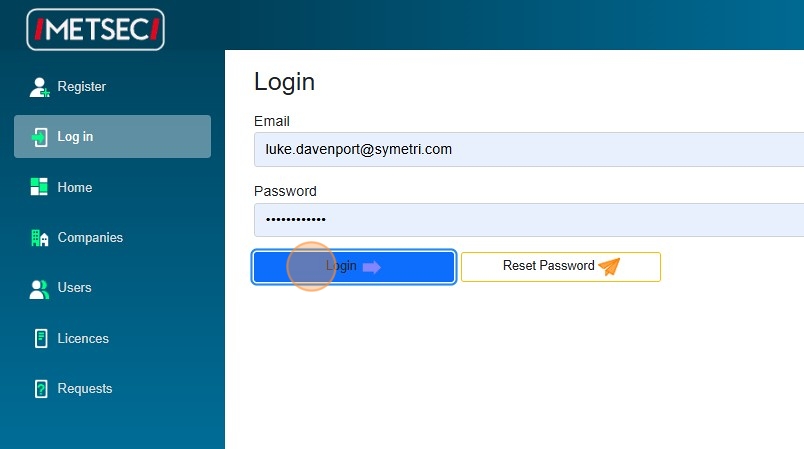
1. Navigate to the login page and log in with your email and password.
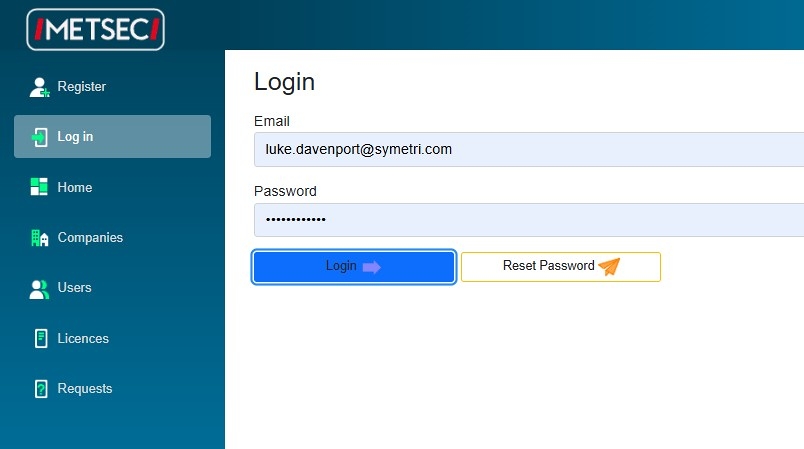
2. Click "Login"
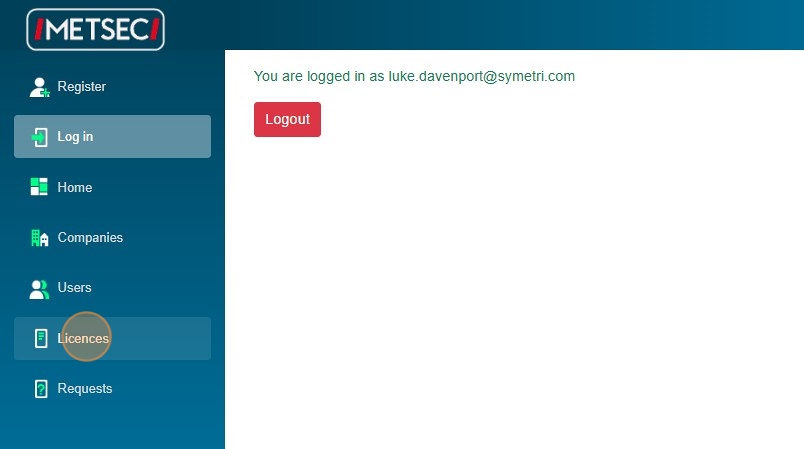
3. Click "Licences"
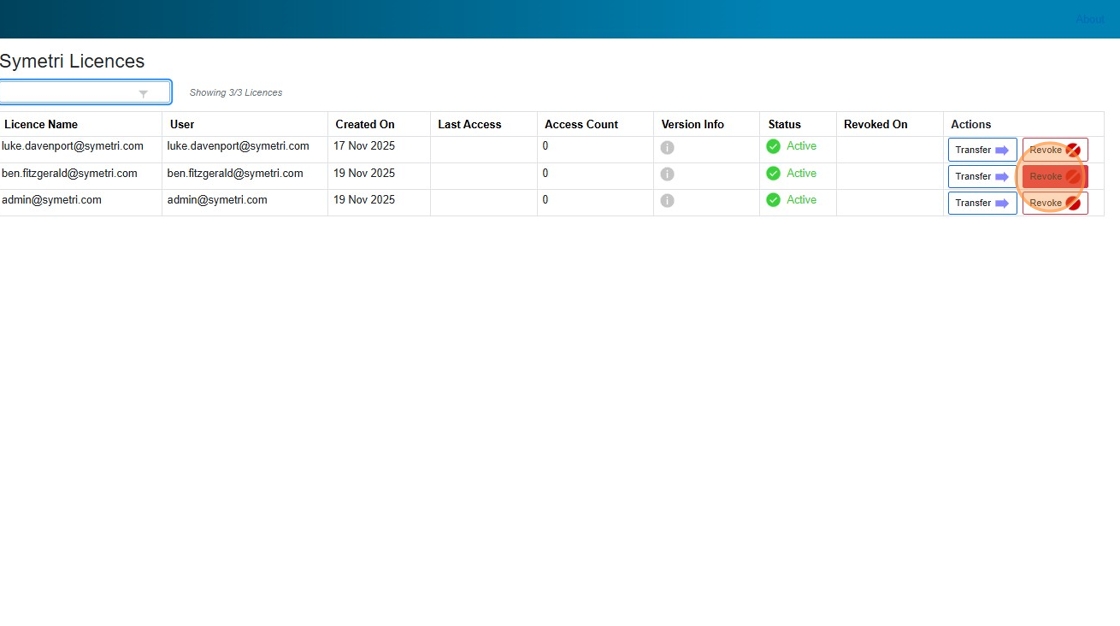
4. We see that we have three active licences currently. We want to revoke the second licence. Click "Revoke".
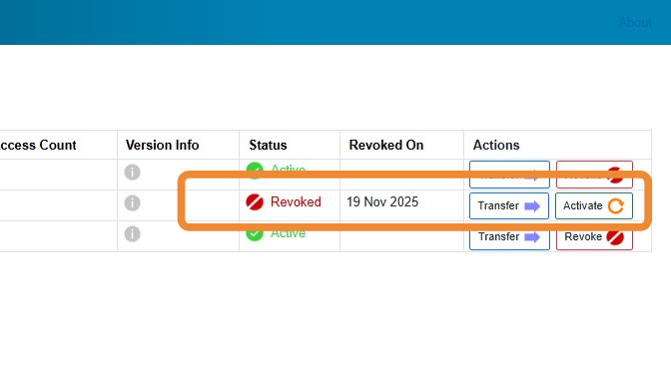
5. We see that the licence is now revoked. We can re-activate it at any time by clicking the 'Activate' button.
Transfer a Licence
The Licences page allows you to view the current licences assigned for your company, revoke licences and transfer licences to other users in your organisation. A licence can be transferred to another user at your company if they: 1) Have been registered with the system and activated by Metsec admin. 2) Do not currently have a licence.
1. Navigate to the login page and log in with your email and password.
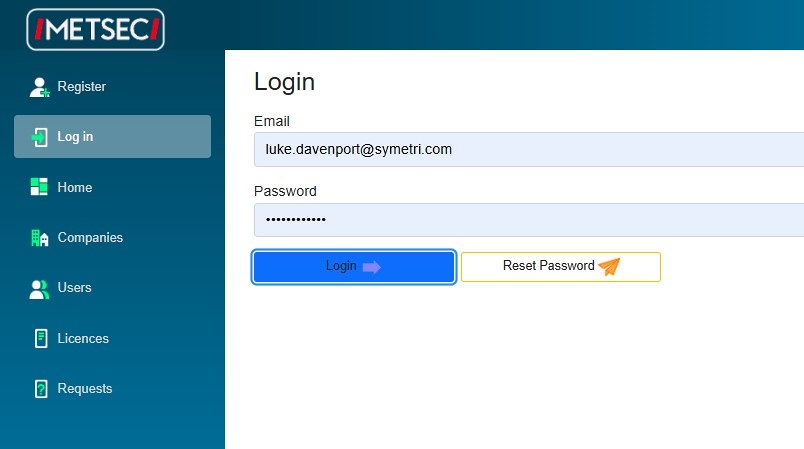
2. Click "Login"

3. Click "Licences"
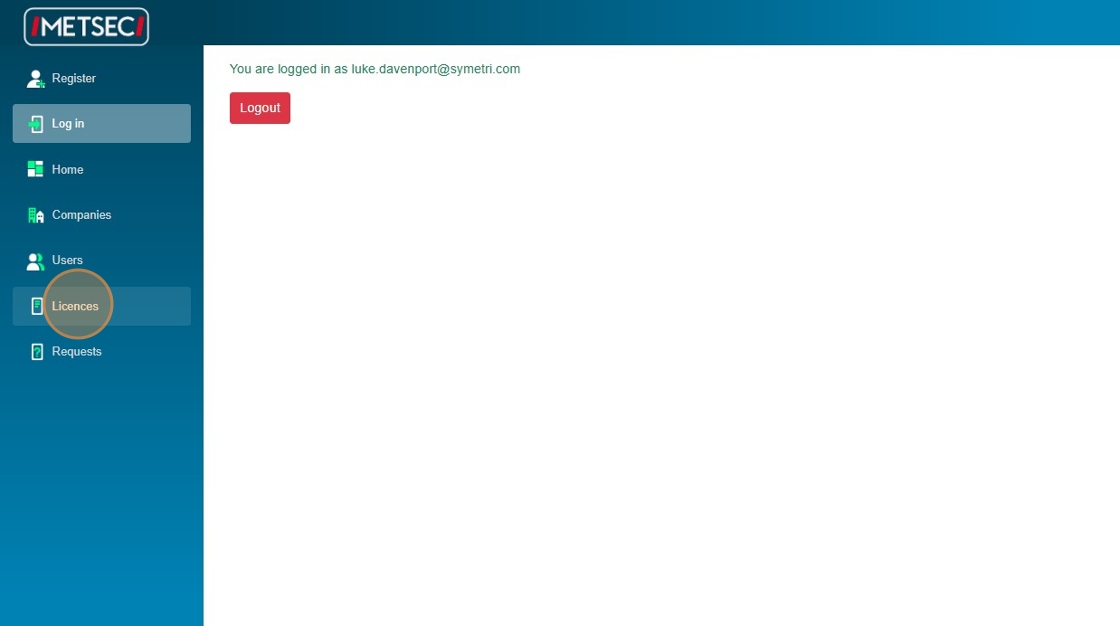
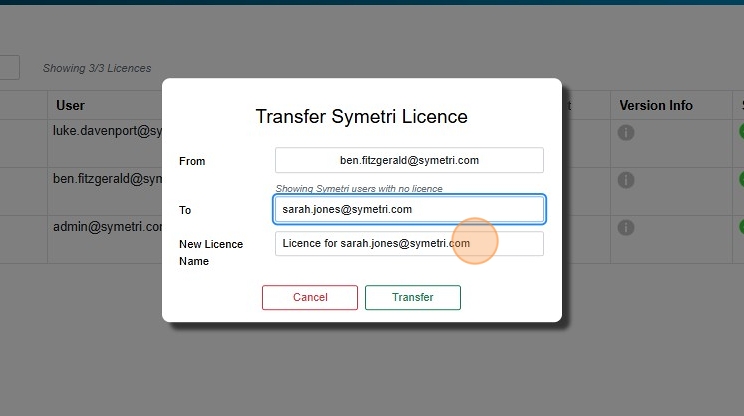
4. In this case we have 3 active licences, and we want to transfer the second one (currently belonging to Ben Fitzgerald). We click the 'Transfer' button.
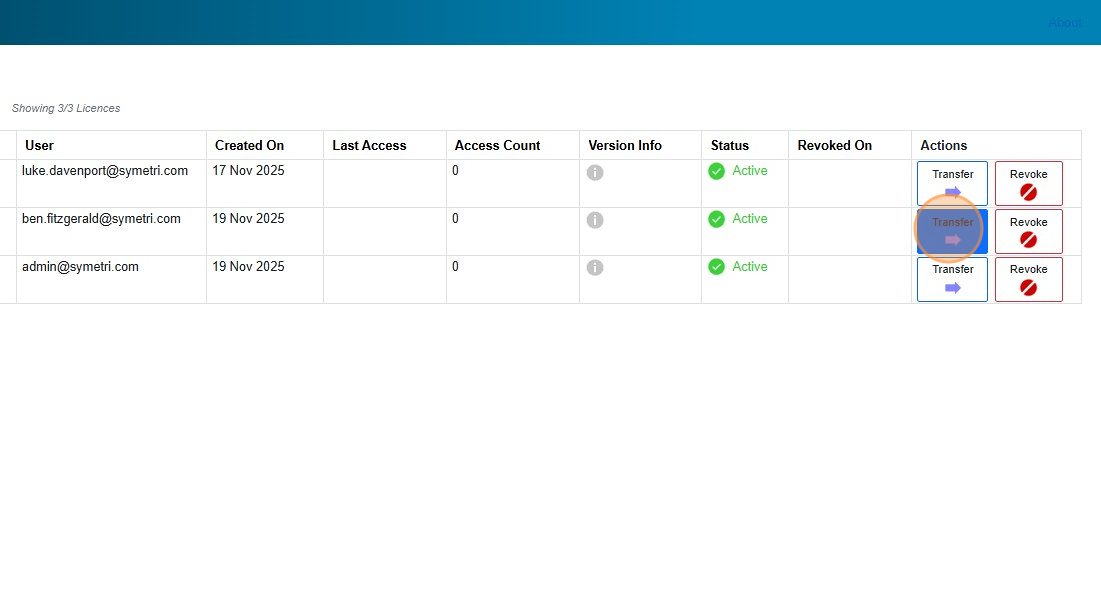
5. Check which company users we can transfer the licence to using this dropdown. Note - we will only be able to transfer the licence to users that have been fully activated.
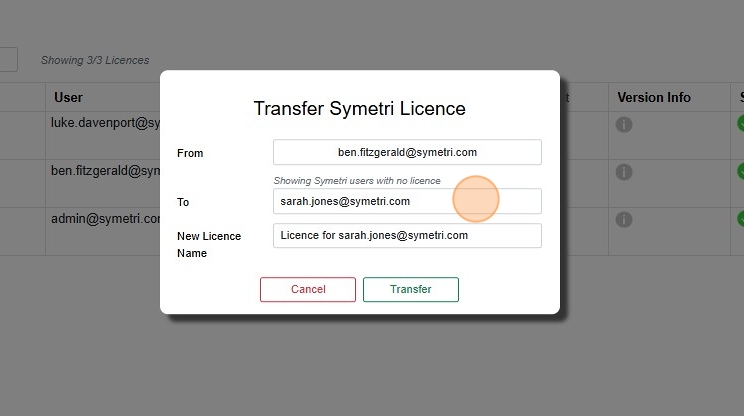
6. We can rename the licence here as part of the transfer if we wish. Or we can leave it with the default name.
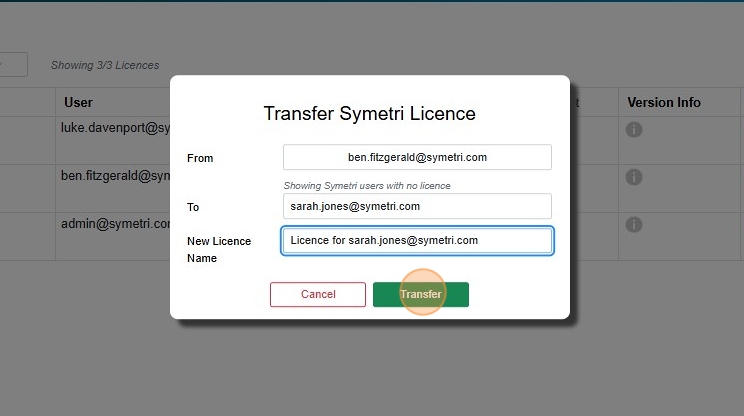
7. Click "Transfer"
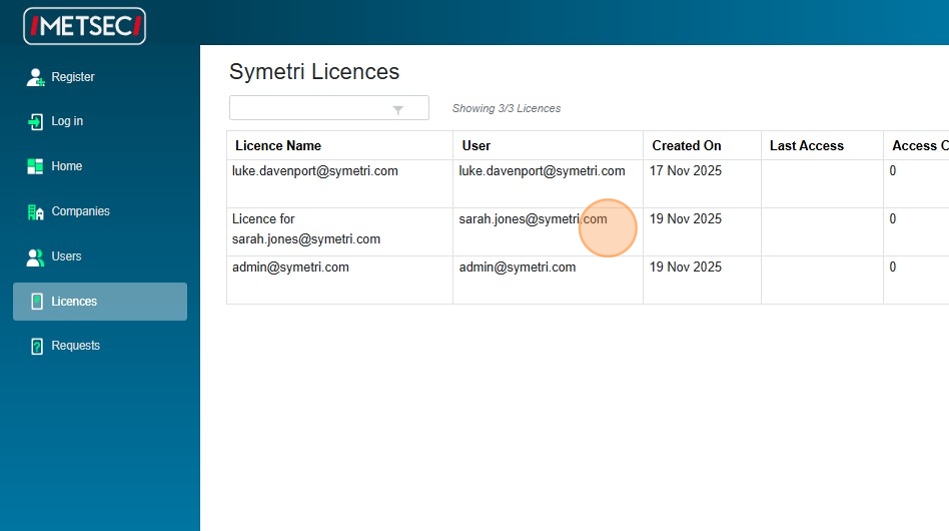
8. We can now see that the licence belongs to Sarah Jones.
Tip: Tip! Licences that are revoked can also be transferred. In this case the licence will remain revoked, and be assigned to the new user.